Your account and email preferences
Sign in, manage your profile and security, choose a theme, and control useful email updates.
Create or return to your account
Use Sign up to create an account or Sign in to return. Complete the verification requested on screen. Use the same account when returning to your bots; your projects appear on the home page.
Open Account settings from your profile menu. Manage profile contains your name, email, image, sign-in methods, sessions, and available security controls. Use the sign-in screens for verification and password recovery.
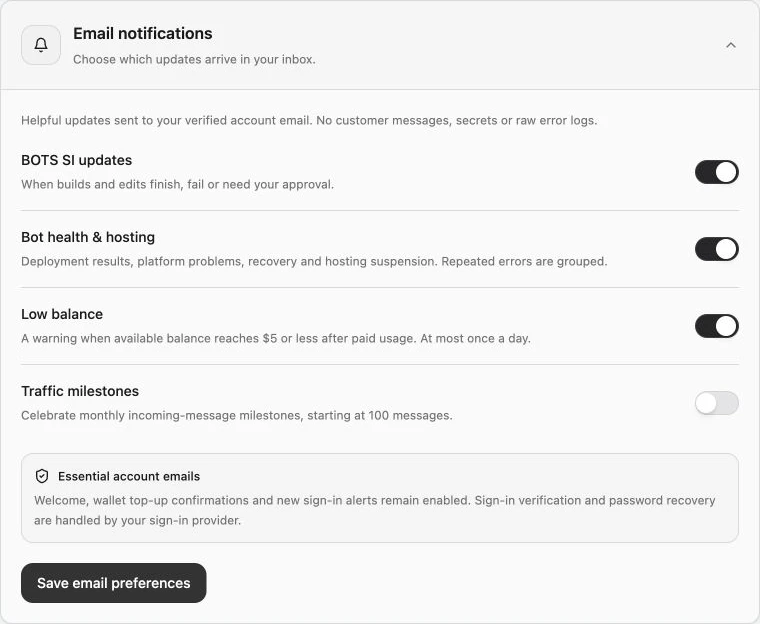
Choose which updates reach your inbox
- Open Account settings and expand Email notifications.
- Choose BOTS SI updates for builds and edits, Bot health & hosting for operational problems, Low balance for wallet warnings, and Traffic milestones for incoming-message milestones.
- Select Save email preferences. If saving fails, retry and confirm the success message before leaving.
Updates use your verified email and exclude customer messages, secrets, and raw logs. Welcome, top-up confirmation, and new sign-in emails remain enabled. If delivery is unavailable, preferences still save.
If an update is missing, confirm your verified primary email, the relevant saved preference, and your spam folder. Return to the project for its current result rather than waiting for an email before checking. Contact support if updates remain missing.
Theme changes CookMyBots’ appearance. Mini App design is separate.